
Use Settings to set up and adjust the tester display and time, shop and administrative settings, network connectivity, and BMIS settings.
Press

to return to the previous screen, select options, and when necessary, press

to enter or continue to the next step.
Tool Settings
Display
Use  to return to the Display menu.
| Language | Select the analyzer default standard language |
| Temperature Units | Select the default temperature units (Fahrenheit/Celsius) used when measuring battery temperature |
| Number Separator | Select the default number display using comma or period separators |
Date & Time
Use to return to the Display menu.
Date Format
Select Month/Day/Year (MM/DD/YYYY), or Day/Month/Year (DD/MM/YYYY).
Date
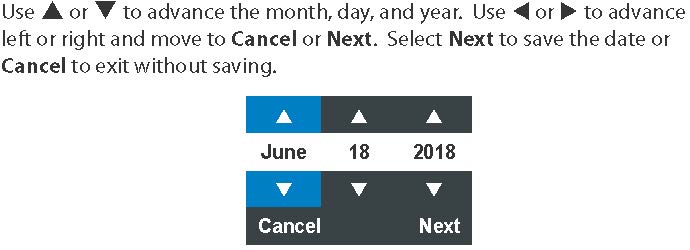
Time Format
Select 12 or 24 Hour Format.
Time

Print Format
Set the default to include Shop Info and State of Health (SoH) information on test result printouts.
Use to return to the Display menu.
Include Shop Info
Press to check and uncheck the box. A checked box indicates the shop information will be included on printout test results.
Include SoH Graph
Auto Test
Press to check/uncheck the box. A checked box indicates the tester will immediately begin testing a battery as soon as it is connected.
Use to return to the Tool menu.
NOTE: To expedite the testing procedure, make sure the Auto Test function is enabled.
VIN Entry
Press to check/uncheck the box. A checked box indicates the VIN Entry option will be included as part of a Battery Test.
Use to return to the Tool menu.
Version
Use to confirm technical information for internal tester software and hardware.
| Config: | Build Number: |
| Firmware: | Serial Number: |
| Flash: | MAC ID: |
| EEPROM: | FCC ID: |
| Build Date |
Shop Info
Enter information about the shop in which the tester will be used.
| Shop Name | Phone Number |
| Shop Address | Email Address |
| Shop Address 2 | Website |
| City | (Blank) |
| State | (Blank) |
| Zipcode | (Blank) |
| Country |
With the displayed alphanumeric keypad, use
to highlight the desired alphanumeric character.
Select
 to access the lower case and symbol character maps.
Once all of the alphanumeric characters have been entered, select Save or Esc to exit without saving.
Network Settings
WiFi
Automatic
The tester searches for any detectable WiFi networks. A list of detected WiFi networks is then displayed on the tester screen. Highlight a displayed network and press
to connect.
Press to return to the WiFi Settings screen.
Manual
Manually enter Security, SSID, Password, Encryption, and WEP Keys. Select Connect.
BMIS Settings
- User Credentials: toyota@cpx900.com
- Password: ToyotaMdx1
- Dealer / Store ID:

